Free · No signup
Video Compressor — Compress Video Online
Shrink a video file right in your browser. Drop in a clip, choose how hard to compress and, if you like, scale it down, then download a smaller MP4 that is easy to email, upload or send on chat. No upload to a server, no account.

Your file never leaves your device.
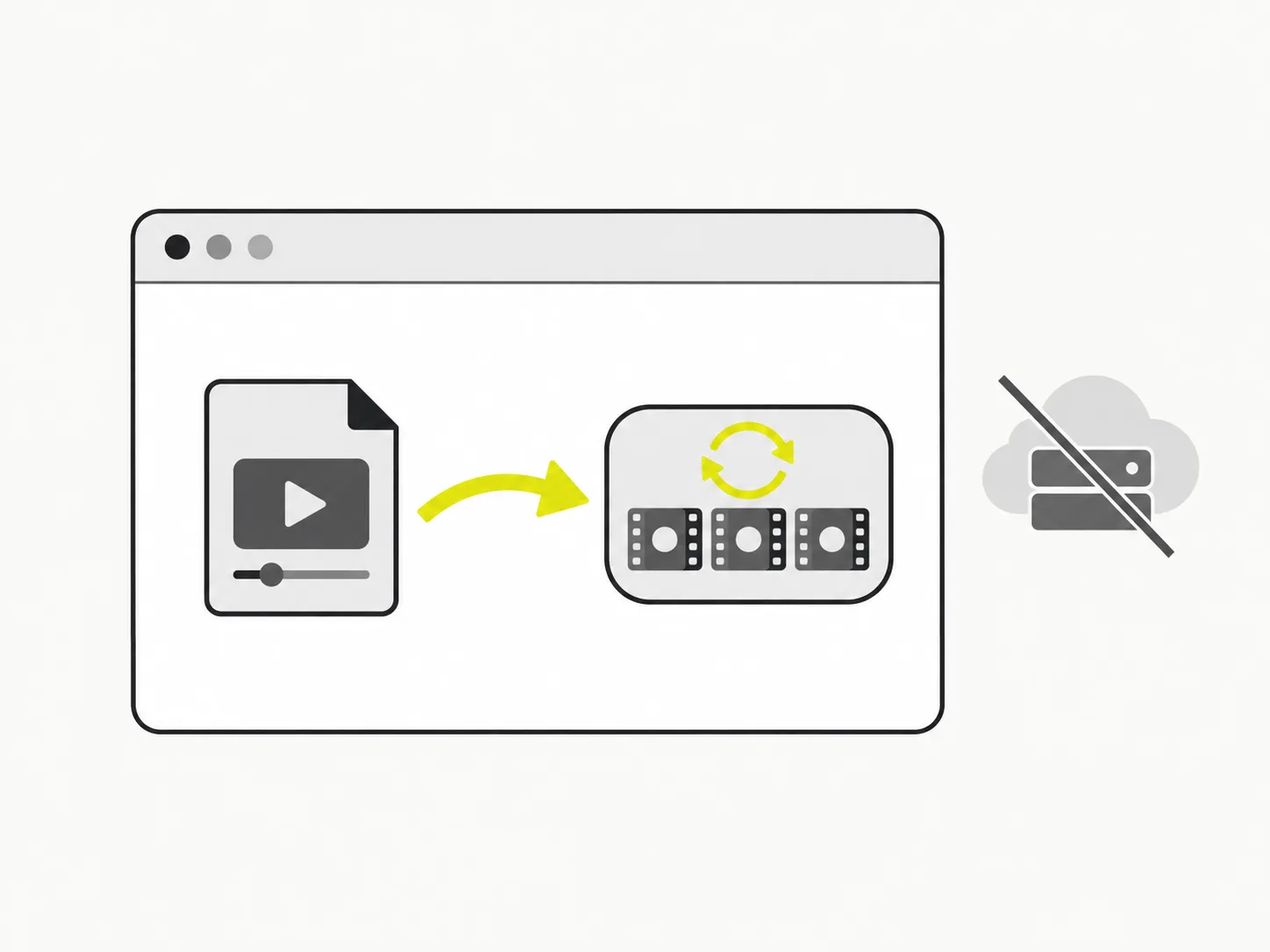
Compression runs in your browser
VidSnappy decodes your video and re-encodes it at a lower bitrate locally — nothing is uploaded to a server. Shrinking a file stays private and starts the moment you drop a clip in, even for a big recording.
Trade a little quality for a lot less size
Pick Light, Balanced or Strong compression, and optionally cap the resolution. A lower bitrate and a smaller frame mean a much smaller MP4 — enough to clear an email limit or a chat upload cap while still looking good.
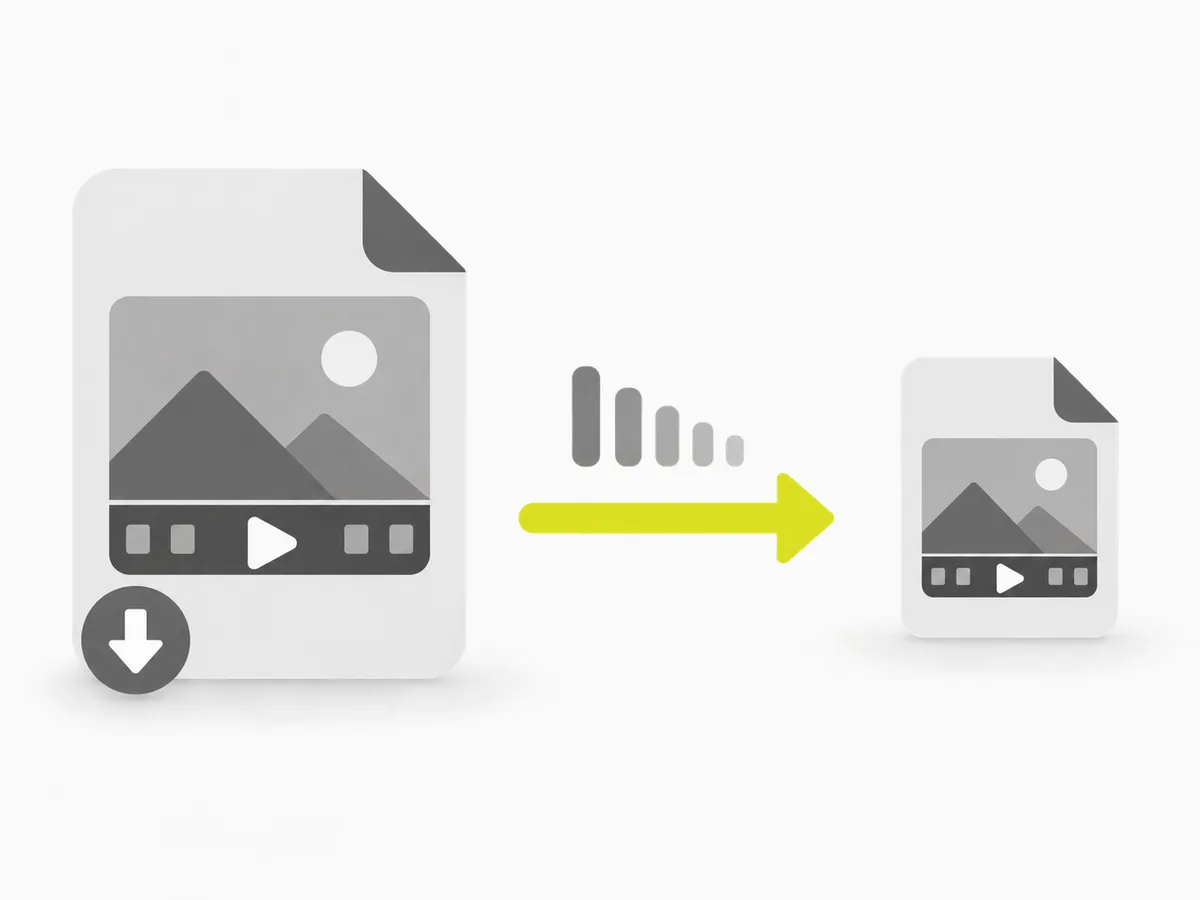
A real, smaller MP4 out
The result is a genuinely re-encoded MP4, and VidSnappy shows the real before-and-after size so you know exactly how much you saved. Download it and share it anywhere a big file would not fit.
Compress a video, in a few steps
Add a clip, choose how hard to compress, and download a smaller MP4 with the real before-and-after size shown.
How to compress a video
Step 01
Add your video
Drag an MP4, MOV, WebM or MKV onto the compressor, or click to choose a file. It loads straight from your device — no upload, no account.

Step 02
Choose how hard to compress
Pick Light, Balanced or Strong, and optionally scale the height down to 1080p, 720p or 480p for an even smaller file.

Step 03
Compress the video
Click Compress. VidSnappy re-encodes the video in your browser at a lower bitrate, showing progress as it works.

Step 04
Check the savings and download
See the real before-and-after size, play the result, then download the .mp4 file. Need it smaller? Choose stronger settings and compress again — it is free.
Free to use, no account needed
Compress video at no cost. There is no sign-up, no hidden limit and nothing to install — open VidSnappy in your browser, add your file and shrink it. It works on desktop and on modern mobile browsers.
No upload, no queue
There is no file to upload and no server queue to wait in. VidSnappy compresses on your own device the moment you add a clip, so the job is limited only by your machine — not by a shared server under load.
Private by design
Because compression runs entirely in your browser, your video is never sent to a server. That keeps personal, work and client footage private while you make it small enough to send.
Honest before-and-after numbers
VidSnappy shows the real original and compressed sizes and the exact percentage saved — no vague "optimized" label. If a file is already efficient, it tells you that too rather than pretending to shrink it.
Why compress a video
Email and chat apps cap attachment sizes, upload forms reject huge files, and storage fills up fast with raw recordings. Compressing keeps a video watchable while cutting the size enough to actually send or store it.
Choosing the strength and resolution lets you decide how much quality to trade for size, so a clip stays clear enough for its purpose while fitting the limit you are up against.
Tips & good to know
A few quick pointers to get the best result from this tool.




What people compress video for

Email attachments
Shrink a clip under an email size limit so it actually sends.

Chat and Discord
Get a video under a chat upload cap without a paid tier.

Faster uploads
A smaller file uploads quicker to any site or platform.

Saving storage
Keep recordings around without filling up your disk or drive.
Free tools, honest pricing
Make your video smaller
Free and private — compress video and cut the file size right in your browser, then download a smaller MP4.
Choose a video