Free · No signup
Video to GIF Converter
Convert video to GIF right in your browser. Drop in an MP4, MOV or WebM, trim the moment you want, choose the frame rate and size, and download a clean animated GIF — no upload to a server, no account.

Your file never leaves your device.
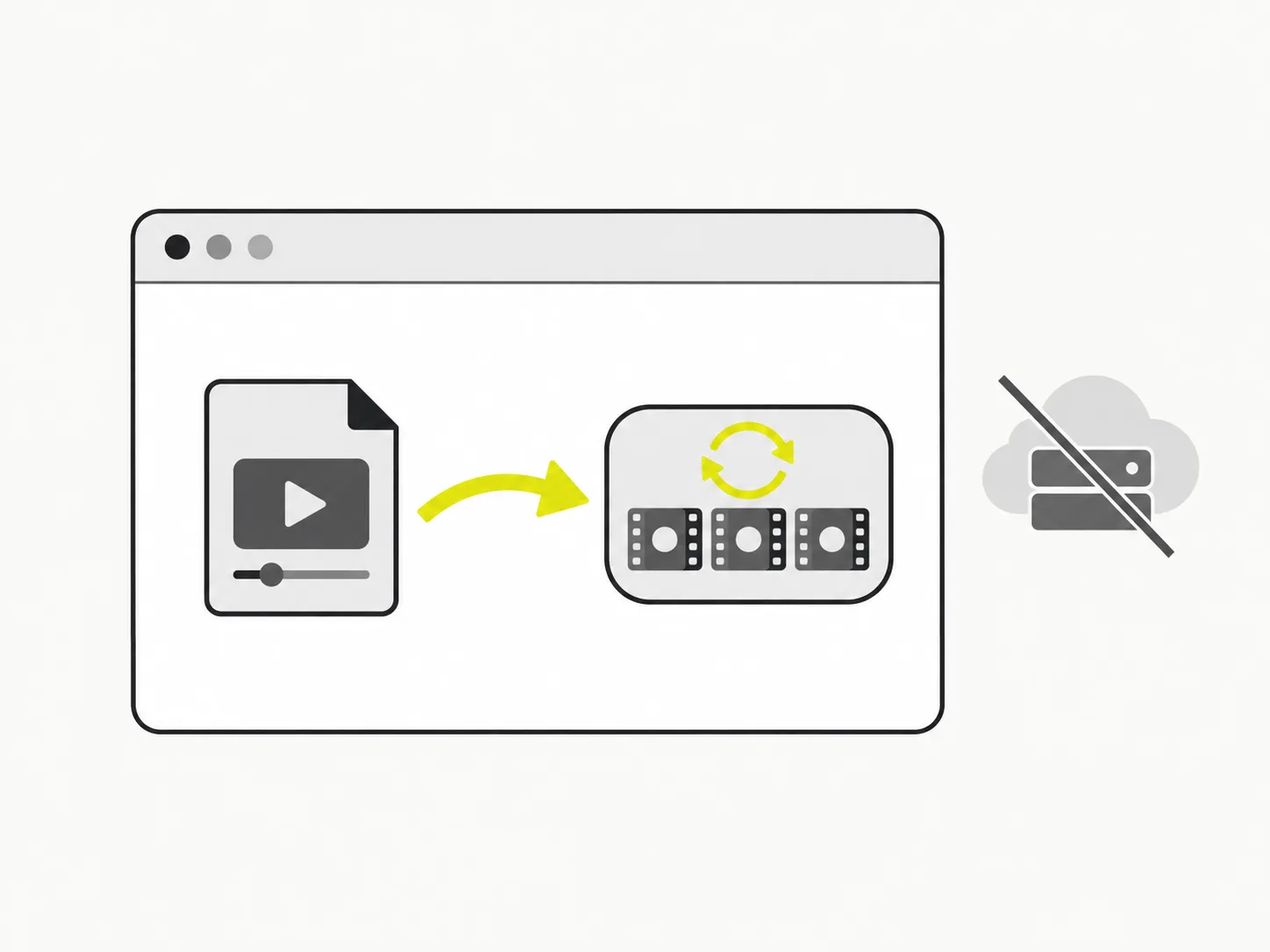
Everything happens in your browser
This video to GIF converter decodes and re-encodes your clip locally. Your video is never uploaded to a server, so converting video to GIF stays private and starts instantly — even for a large MP4. Nothing to install, nothing to sign up for.
You control the GIF, frame by frame
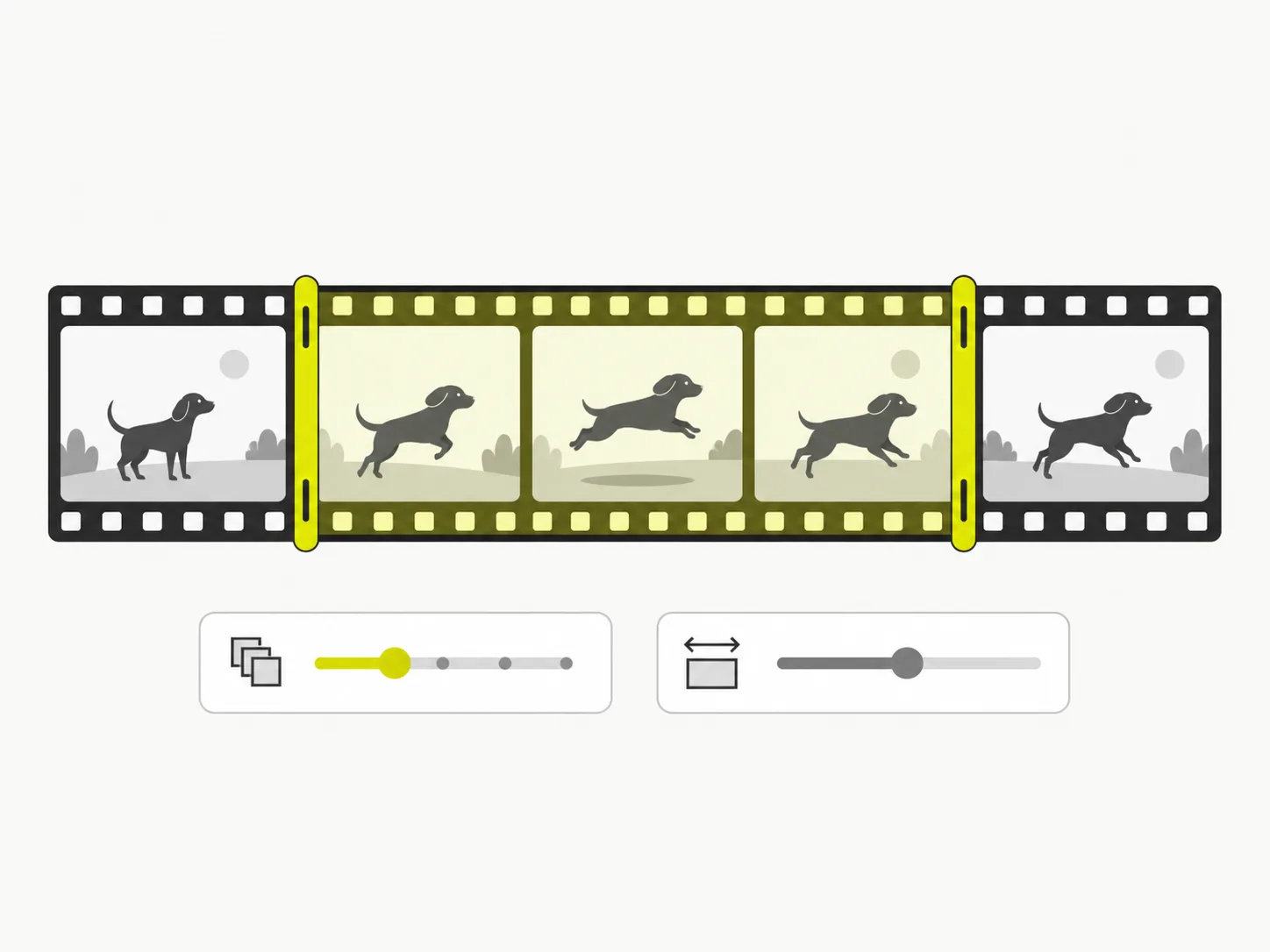
A raw video-to-GIF export can be huge or choppy. Here you set the trim range, the frame rate and the output width before you convert video to GIF, so the animated GIF looks smooth and stays a sensible size for chat, docs or the web.
MP4, MOV and WebM in — animated GIF out
Drop in the format you already have. Whether it is an MP4 from your phone, a MOV screen recording or a WebM clip, VidSnappy turns your video into a GIF you can download and reuse anywhere GIFs are supported.
From clip to GIF, in a few seconds
Here is the whole flow at a glance: drop in a clip, trim to the moment that matters, pick a frame rate and width, and export a clean looping GIF. Everything runs locally in your browser.
How to convert video to GIF
Step 01
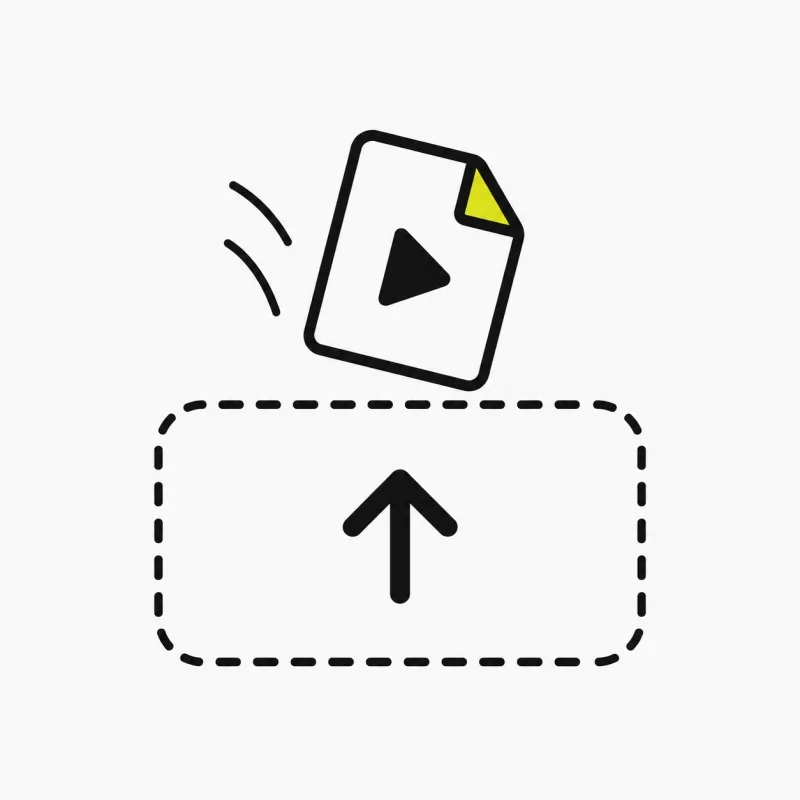
Add your video
Drag an MP4, MOV or WebM onto the converter, or click to choose a file. It loads straight from your device — no upload, no account.
Step 02
Trim and set your options
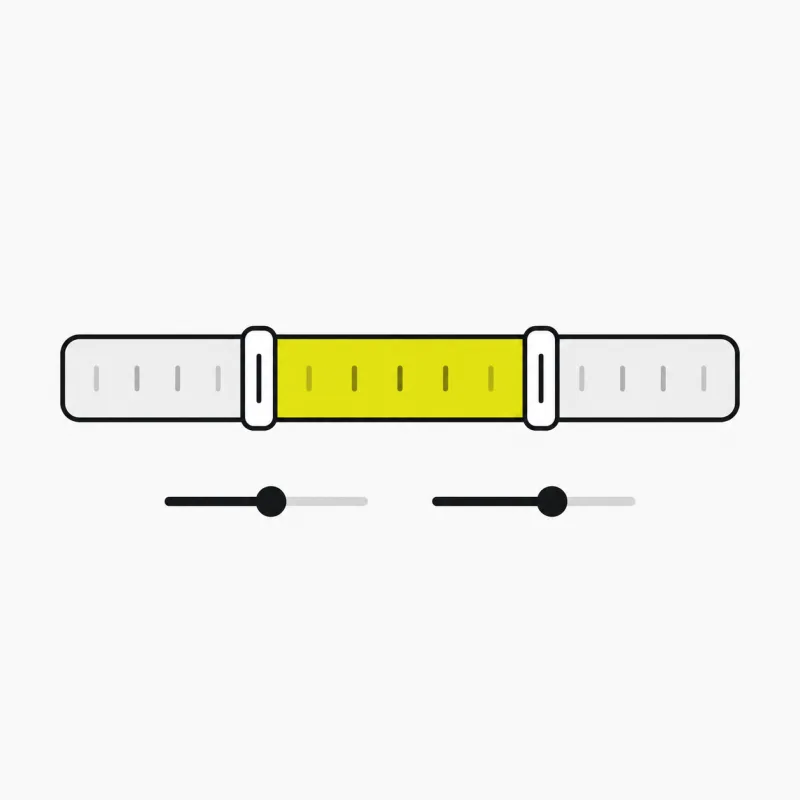
Pick the start and end of the moment you want, then set the frame rate, output width and quality. A shorter clip at a lower frame rate makes a smaller GIF.
Step 03
Convert to GIF
Click Convert. VidSnappy reads the frames in your trim range and encodes them into a single animated GIF, showing progress as it works.

Step 04
Preview and download
Watch the finished GIF loop, then download the .gif file. Not quite right? Adjust the trim, FPS or size and convert again — it is free every time.
Free to use, no account needed
Convert video to GIF at no cost. There is no sign-up, no hidden limit and no download to install — just open VidSnappy in your browser, add your file and export. It works on desktop and on modern mobile browsers.
No upload, no queue
There is no file to upload and no server queue to wait in. VidSnappy encodes the GIF on your own device the moment you drop a clip in, so a short conversion finishes in seconds — even when plenty of other people are using the tool at the same time.
Private by design
Because the video to GIF conversion runs entirely in your browser, your clip is never sent to a server. That keeps personal, work and client footage private, and it means the conversion begins the instant you drop the file in.
Tune the size and smoothness
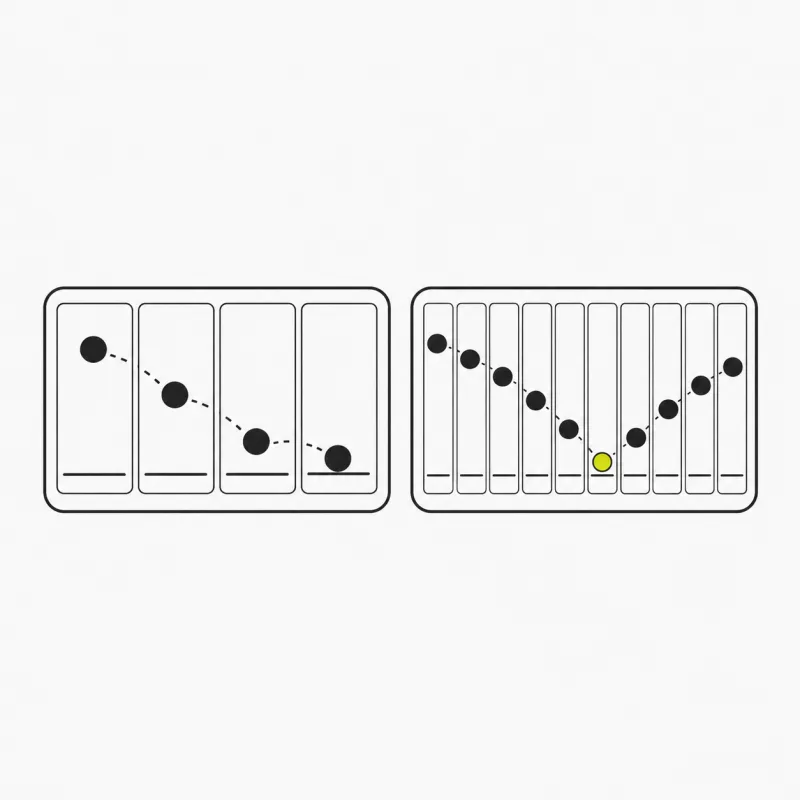
Frame rate, output width and quality are yours to set. Raise the FPS for smoother motion, lower it for a lighter file; shrink the width to fit a message thread or keep it large for a crisp GIF in a blog post.
What is a GIF, and when to use one
A GIF is a short, silently looping animation that plays automatically almost everywhere — chat apps, docs, wikis, issue trackers and social posts — without a video player. That makes converting a video to a GIF perfect for reactions, quick product demos, tutorials and how-to snippets.
GIFs trade file size for that universal convenience, which is why trimming to the key moment and picking a sensible frame rate and width matters. The controls on this page let you make that trade deliberately instead of ending up with a bloated file.
Tips for a smaller, cleaner GIF
A GIF trades file size for the convenience of autoplaying everywhere. These four controls let you make that trade on purpose instead of ending up with a bloated file.



What people convert to GIF

Reactions and memes
Grab the funniest second of a clip and turn that video into a looping GIF you can drop into any chat.

Product and app demos
Show a feature working in a few seconds. A GIF autoplays inline in docs, READMEs and landing pages where a video would not.
Tutorials and how-tos
Convert a screen recording to a GIF so each step loops on its own, no play button required.
Bug reports and feedback
Turn a short capture into a GIF and paste it straight into an issue so reviewers see exactly what happened.
More VidSnappy tools
Free tools, honest pricing
Turn your video into a GIF
Free and private — convert video to GIF right in your browser and download it in seconds.
Choose a video