Free · No signup
Video to MP3 Converter
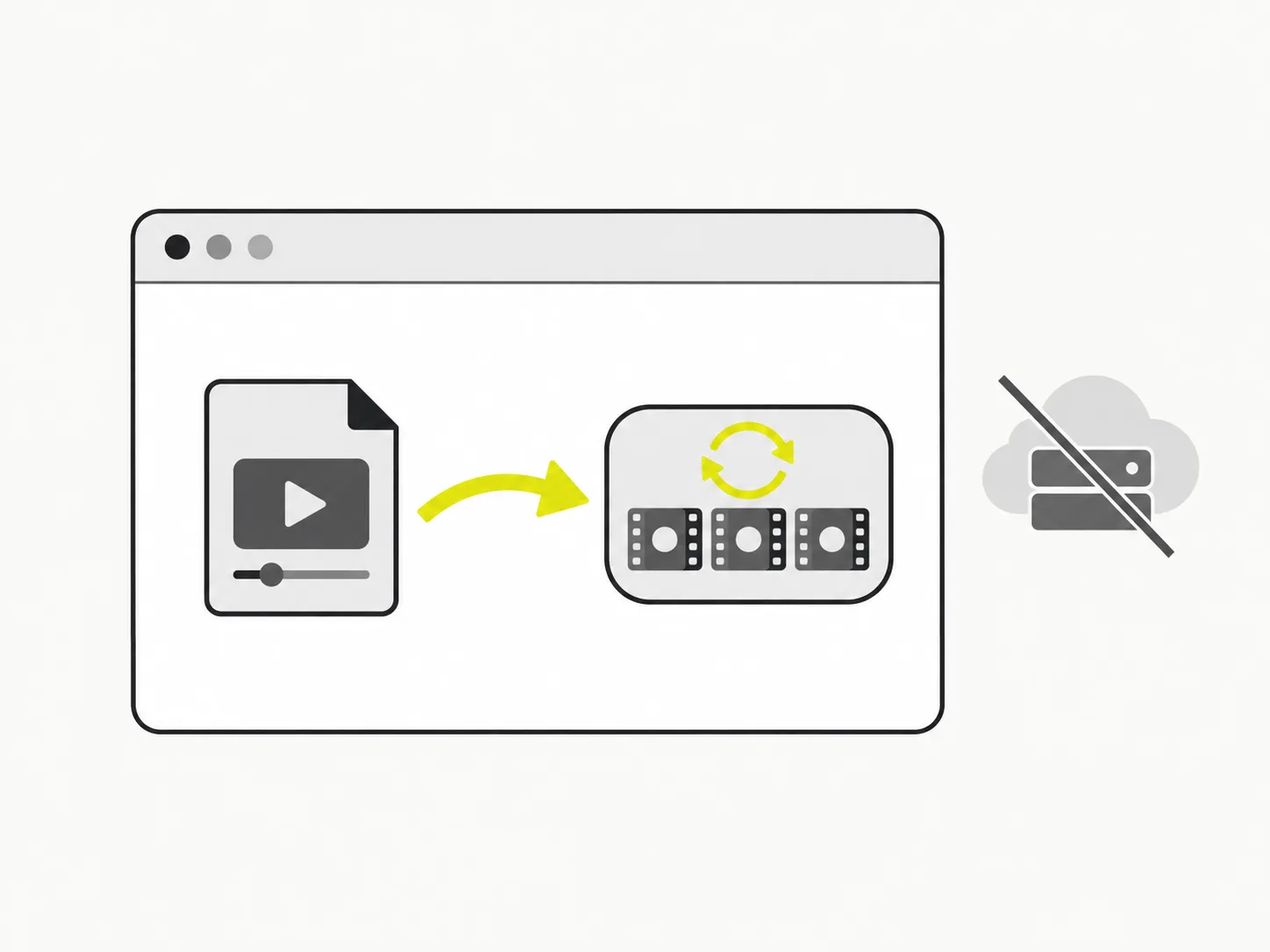
Pull the audio out of any video and save it as an MP3 — right in your browser. Drop in an MP4, MOV, WebM or MKV, trim to the part you need, pick a bitrate and download a clean MP3 file. No upload to a server, no account.

Your file never leaves your device.
The audio is extracted in your browser
VidSnappy decodes your video and pulls out its audio track locally — nothing is uploaded to a server. Converting a video to MP3 stays private and starts the instant you drop the file in, whether it is a lecture recording, a podcast export or a music video.
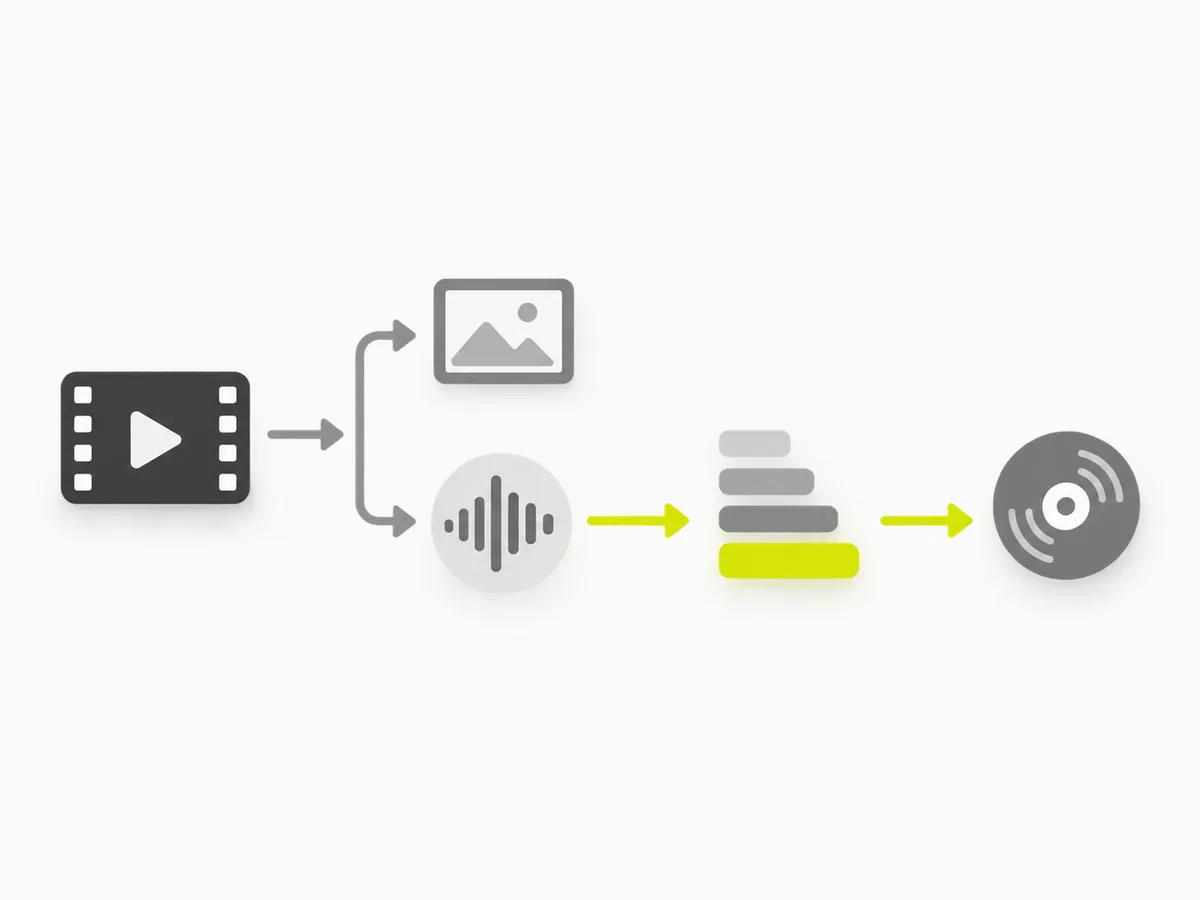
Choose the MP3 bitrate that fits
Higher bitrates keep more detail; lower bitrates make a lighter file. Pick 128 kbps for a small voice recording or 320 kbps for music, then extract audio from your video to a real MP3 that plays in every music app, podcast player and car stereo.
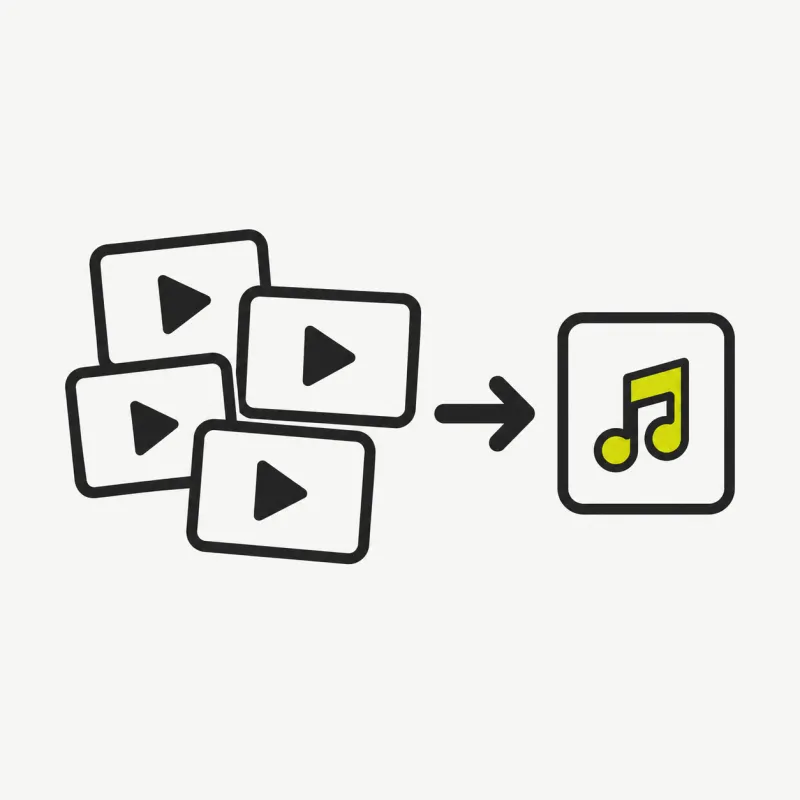
MP4, MOV, WebM and MKV in — MP3 out
Drop in whatever you have. VidSnappy reads the audio inside your MP4, MOV, WebM or MKV and re-encodes just the sound to MP3, so you get a compact audio file you can listen to, share or add to a playlist.
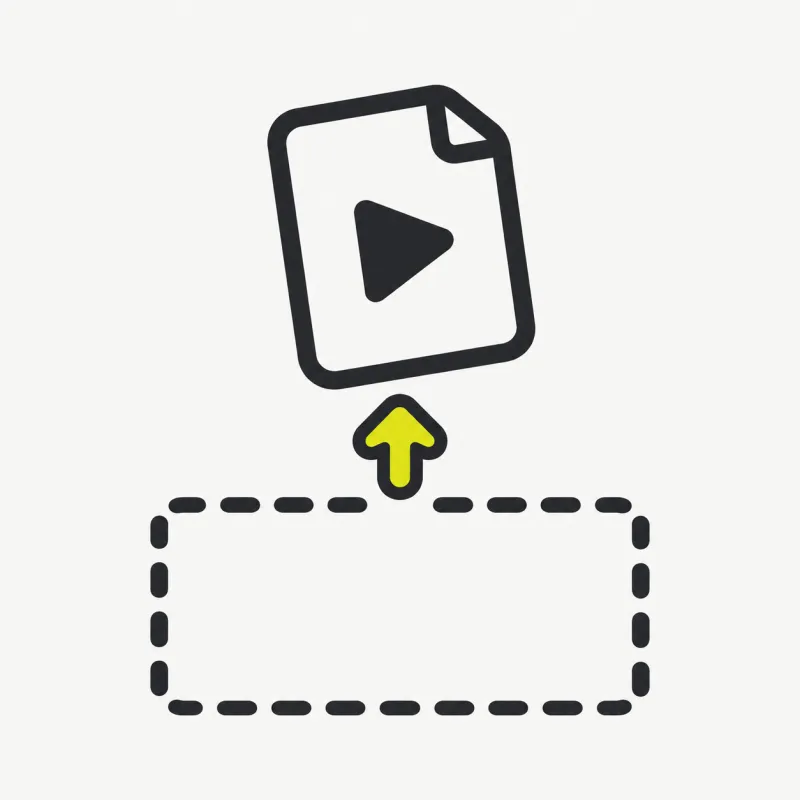
From video to MP3, in a few steps
Drop in a clip, trim to the part you need, pick a bitrate and pull out a clean MP3 — all in your browser.
How to convert video to MP3
Step 01
Add your video
Drag an MP4, MOV, WebM or MKV onto the converter, or click to choose a file. It loads straight from your device — no upload, no account.

Step 02
Trim and pick a bitrate
Set the start and end if you only want part of the audio, then choose an MP3 bitrate. A lower bitrate makes a smaller file; a higher one keeps more detail.
Step 03
Extract the MP3
Click Extract. VidSnappy decodes the audio in your trim range and encodes it to a real MP3, showing progress as it works.

Step 04
Preview and download
Play the MP3 to check it, then download the .mp3 file. Want a different length or bitrate? Adjust and extract again — it is free every time.
Free to use, no account needed
Convert video to MP3 at no cost. There is no sign-up, no hidden limit and nothing to install — open VidSnappy in your browser, add your file and export the audio. It works on desktop and on modern mobile browsers.
No upload, no queue
There is no file to upload and no server queue to wait in. VidSnappy extracts the audio on your own device as soon as you add a clip, so a short conversion finishes in seconds — even when many people are using the tool at once.
Private by design
Because the extraction runs entirely in your browser, your video is never sent to a server. That keeps interviews, meetings and personal recordings private while you turn them into an MP3 you can keep.
Real MP3, not a rename
VidSnappy decodes the original audio and re-encodes it as a genuine MP3 at the bitrate you choose — it does not simply rename the container. The result plays anywhere MP3 is supported, from phones to podcast apps to older car stereos.
When to pull audio from a video
Extracting audio is handy whenever you only need the sound: saving a talk or webinar to listen to later, lifting a music track from a video, turning a recorded meeting into an audio file, or grabbing narration to reuse in another edit.
Because you can trim first, you keep only the part that matters and avoid a huge file. Choosing the bitrate lets you balance clarity against size for voice or music.
Tips & good to know
A few quick pointers to get the best result from this tool.



What people extract to MP3
Talks and webinars
Save a lecture or webinar as an MP3 to listen to on the go, without carrying the whole video.
Music and audio
Lift the audio from a music video or performance clip into an MP3 for your library.

Meetings and interviews
Turn a recorded call or interview into an audio file for notes, transcription or archiving.
Voiceover and narration
Grab narration from a video so you can reuse the audio in another project.
Free tools, honest pricing
Extract audio from your video
Free and private — pull the audio out of any video and download it as an MP3, right in your browser.
Choose a video